How to fix IPTV buffering
Work out whether buffering comes from your broadband, Wi-Fi, device or provider, then fix it: speed checks, Wi-Fi changes, app settings and DNS.
Buffering is the spinning wheel that appears when your device runs out of video to play before the next chunk arrives. Almost every case comes down to one of four things: your connection, your Wi-Fi, your device or the service’s servers. Work through the checks below in order; the early ones fix most problems and take a couple of minutes.
First, find out where the problem is
- Try another channel. If only one channel buffers, the problem is on the provider’s side for that channel. Nothing you change at home will help; report it and pick another channel for now.
- Try another app on the same device, such as YouTube at the same quality. If YouTube also buffers, the problem is your connection or device, not the IPTV service.
- Try the same channel on another device, such as your phone on the same Wi-Fi. If it plays smoothly there, the TV or stick is the weak link.
Check your internet speed properly
Run a speed test on the device you watch on, not your phone. On a Fire TV or Android TV, install a speed test app from the app store; on a smart TV, open the browser and visit a speed test site. Test at the time you usually watch, because evenings are when broadband is busiest.
| Quality | Speed needed per stream |
|---|---|
| Standard definition | 3–5 Mbps |
| HD (720p/1080p) | 8–10 Mbps |
| 4K | 25 Mbps |
Add up everything else in the house too: someone else streaming, a games console downloading an update or a video call all share the same connection.
Fix your Wi-Fi
A fast broadband line is no use if the Wi-Fi between the router and the TV is weak. These are the changes that help most, roughly in order of effect:
- Use a cable. An Ethernet cable from the router to the TV or box removes Wi-Fi from the equation entirely. Fire TV Sticks need Amazon’s Ethernet adapter. If a long cable isn’t practical, powerline adapters carry the connection through your mains wiring.
- Switch to 5 GHz. If your router shows two networks, often with “5G” or “5GHz” in the name, connect the TV to that one. It is faster over short distances.
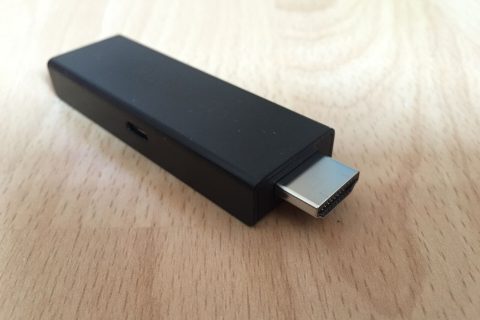
- Move things. Keep the router out of cupboards and away from the floor, and use the HDMI extender if you have a streaming stick behind the TV.
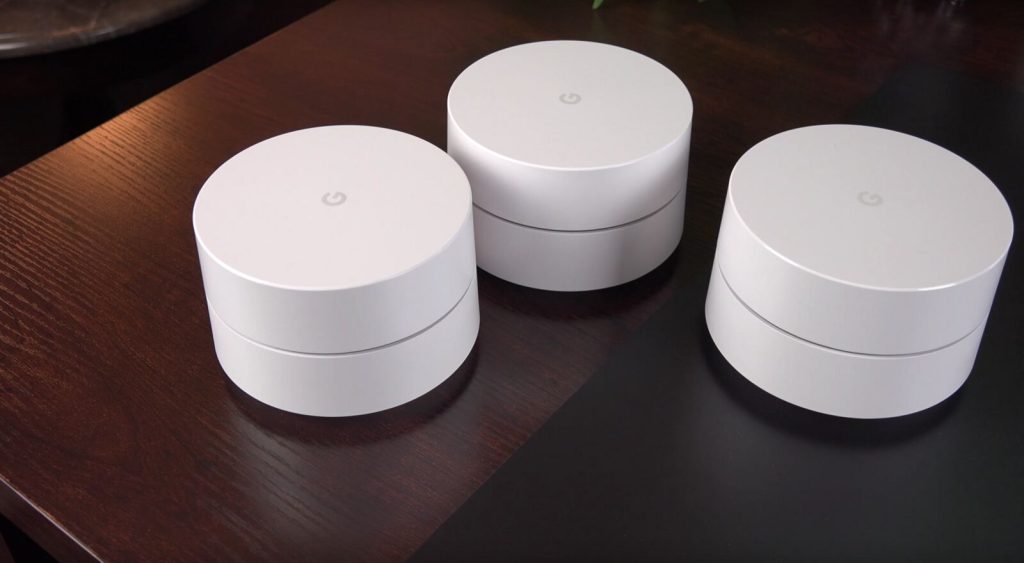
- Add a mesh system if the TV is far from the router or on another floor. A single cheap range extender often makes buffering worse.
Restart and clean up your device
- Restart everything, router included: unplug the router for 30 seconds, then the TV or box.
- Clear the player app’s cache in your device’s app settings. Clear the cache, not the data, or you’ll have to log in again.
- Close or remove apps you don’t use. Streaming sticks have little memory, and background apps take it.
- Update the device and the player app. Updates often include playback fixes.
Adjust the player app’s settings
Most player apps have settings that make a real difference:
- Buffer size: raise it to “large” or “very large” if the app offers it. The channel takes a second longer to start, but it rides out short dips in speed.
- Video player: apps like IPTV Smarters and TiviMate let you switch between internal players or hardware and software decoding. If one stutters, try the other.
- Stream format: some providers offer both
.ts(MPEG-TS) and.m3u8(HLS). HLS copes better with unstable connections. - Quality: if your provider offers SD, HD and 4K versions of a channel, step down one level on a slow connection.
Change your DNS
DNS is how your device looks up the address of the streaming server. Some broadband providers’ DNS servers are slow; switching can shorten the time a channel takes to start, though it rarely fixes buffering mid-programme on its own. You can set a public DNS such as Cloudflare (1.1.1.1) or Google (8.8.8.8) in your router’s settings so every device benefits, or in the network settings of the TV or box.
About VPNs
A VPN adds an extra hop between you and the server, so on its own it usually makes streaming slightly slower. It can help in one specific case: when your broadband provider slows down video traffic at busy times. If buffering appears every evening and vanishes with a VPN switched on, that is the likely cause, and it is worth raising with your broadband provider.
When it’s the provider
If every check above passes and live channels still buffer at the same busy times, typically during big football matches, the provider’s servers are overloaded. Licensed services publish status pages or post updates on social media; if yours offers neither and the problem happens often, it may be time to look at a different service.