How to set up IPTV on a Fire TV Stick
Install your provider's app or a player app on an Amazon Fire TV Stick, add an M3U playlist or Xtream Codes login, and get the smoothest picture.
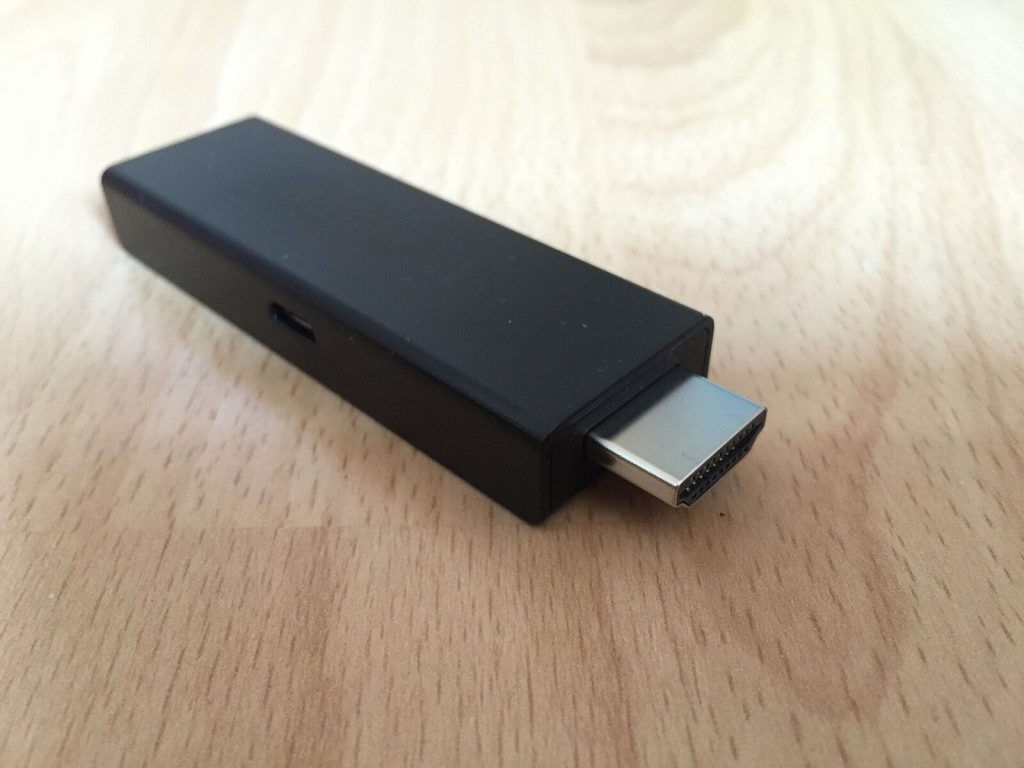
The Amazon Fire TV Stick is the most popular device for IPTV because it’s cheap, it plugs into any TV with HDMI, and it runs most Android player apps. This guide covers both cases: services with their own app, and services that give you an M3U playlist or Xtream Codes login.
Before you start: have your login details from your provider ready. For a playlist-based service that means either an M3U link, or a server address, username and password. This guide doesn’t cover finding a service; see Is IPTV legal? for how to recognise a licensed one.
If your provider has its own app
Services such as BBC iPlayer, ITVX, Channel 4, NOW, Pluto TV and Zattoo all publish Fire TV apps. This is the easiest route and the one to prefer.
- On the Fire TV home screen, select Find, then Search.
- Type the service’s name and pick its app from the results.
- Select Get or Download, wait for it to install, then Open.
- Sign in with the account you created on the provider’s website.
That’s all. The rest of this guide is for playlist-based services.
Choose a player app
A player app reads your playlist and turns it into a channel list with a TV guide. On Fire TV, the most used are:
- TiviMate: the closest thing to a cable-box interface, with an excellent guide. Free to try; recording, catch-up and multiple playlists need a paid upgrade.
- IPTV Smarters Pro: straightforward, supports both M3U and Xtream Codes logins, and handles films and series well.
- Kodi with the PVR IPTV Simple Client add-on: free and open source, very flexible, but more work to set up.
The player app comparison goes into more detail. If you are unsure, start with IPTV Smarters Pro; you can switch later without losing anything.
Install the player app
First check whether the app is in the Amazon Appstore for your country by searching for it exactly as in the section above. If it’s listed, install it from there and skip to the next section.
If it isn’t listed, you can install it with Amazon’s own developer settings and the free Downloader app:
- Search for Downloader in the Appstore and install it.
- Open Settings, then My Fire TV. If you don’t see Developer options, open About and press the select button on your device’s name seven times until a message says you’re a developer.
- Go back to Developer options, open Install unknown apps and turn it on for Downloader only.
- Open Downloader and type the download address published on the player app developer’s official website.
- When the download finishes, select Install, then Done. Downloader will offer to delete the installation file; choose Delete to free up space.
- Return to Install unknown apps and switch Downloader back off.
Only install from the developer’s own site. Modified copies of player apps shared on forums and in video descriptions are a common way to get malware on a Fire TV. Turning unknown apps back off afterwards keeps the door closed.
Add your playlist
Each app words this a little differently, but the information is the same.
With an Xtream Codes login
- Open the app and choose Add user or Add playlist, then Xtream Codes.
- Enter any name you like, then the username, password and server address exactly as your provider gave them, including
http://and any port number such as:8080. - Select Add user or Next. The app downloads the channel list and guide; the first load can take a minute or two.
With an M3U link
- Choose Add playlist, then M3U URL or Load from URL.
- Type the full link. It is long: if the app offers a phone companion or a web page for uploading playlists, use that instead of the remote.
- If the app asks for an EPG URL, enter the guide link from your provider. Without it, channels play but the TV guide stays empty.
Get the best picture from a Fire TV Stick
- Use the HDMI extender that comes in the box. It moves the stick away from the TV’s electronics and improves Wi-Fi reception noticeably.
- Use a 5 GHz Wi-Fi network if your router has one, or Amazon’s Ethernet adapter for a wired connection.
- Restart it once a week. Hold Select and Play/Pause together for five seconds. It clears memory that player apps tend to fill up.
- Clear the app cache if channels start slowly: Settings, Applications, Manage installed applications, choose the app, then Clear cache. Don’t choose Clear data, which erases your login.
Still getting freezes? Work through How to fix IPTV buffering.